Installing Apps
HaLOS provides a container app store — a curated collection of applications packaged as Debian packages that run as Docker containers. Browse, install, and manage apps through the Cockpit web interface.
How it works
Installing a container app is a two-phase process:
-
Package install (fast) — HaLOS downloads and installs a small package that describes how to run the app. This takes only a few seconds.
-
Image pull (slow) — The app's actual software is then downloaded from the internet. This can take anywhere from 30 seconds to several minutes depending on the app size and your network speed.
The app only becomes accessible after the download completes and the app starts. It then appears on your dashboard automatically.
Under the hood
The package is a standard Debian .deb containing a Docker Compose file
(which defines the containers to run), a systemd service (which manages
the app lifecycle), and metadata for routing and dashboard integration.
The heavy download in phase 2 is Docker pulling the container image
layers from a registry.
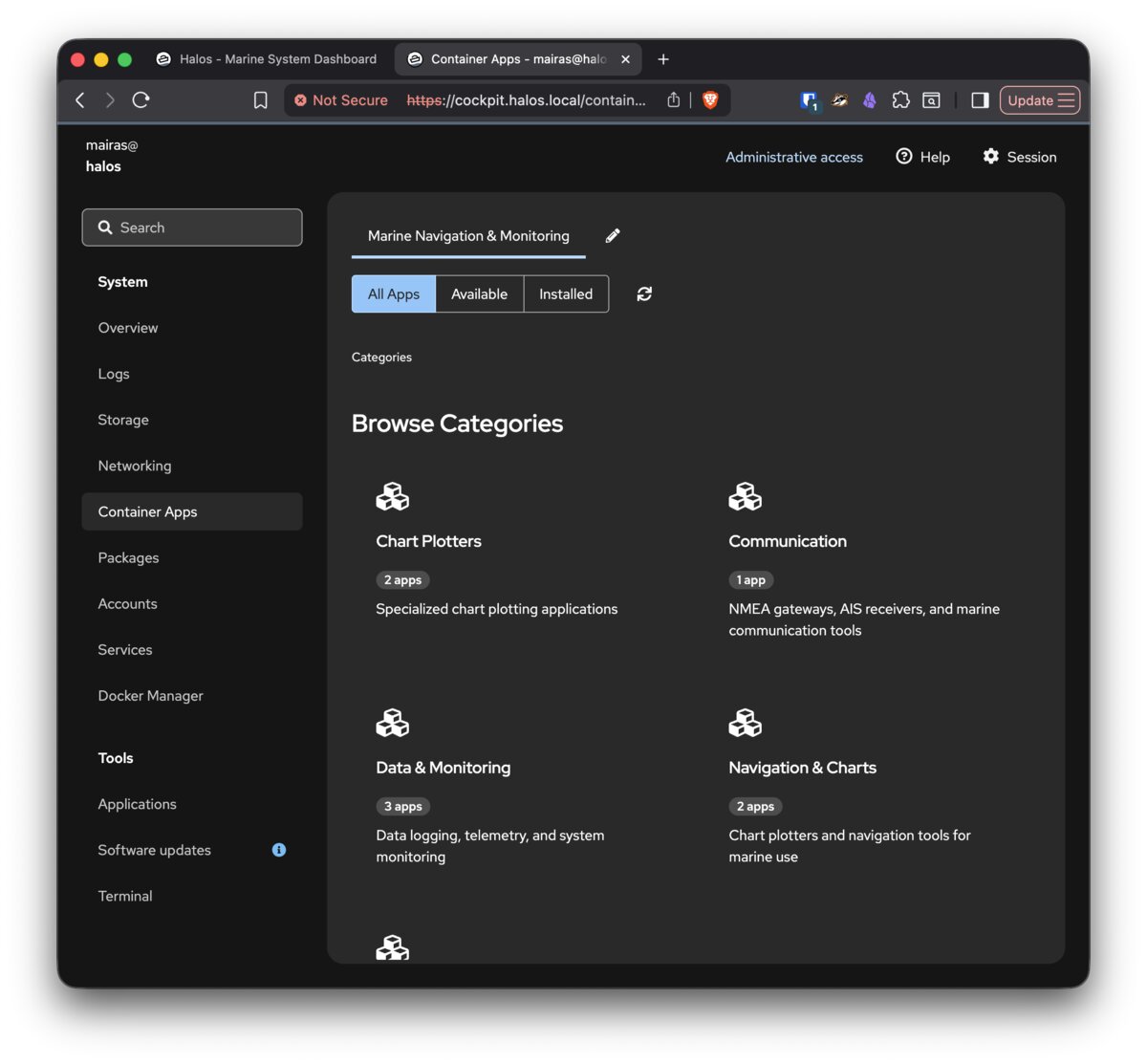
Browsing the store
- Open Cockpit (via the dashboard tile or
https://halos.local:9090/). - Navigate to Container Apps in the left sidebar.
- Browse by category or use the search bar to find specific apps.
The store shows apps from all configured stores. The Marine variant adds a dedicated Marine App Store with curated marine applications.
Installing an app
- Click on an app to view its details (description, version, dependencies).
- Click Install.
- The package installs quickly, but the app needs time to pull its Docker image on first start. Small apps are ready within a minute; larger ones (e.g., Grafana, OpenCPN) may take several minutes on slower connections.
- Once the image pull completes, the app appears on your Homarr dashboard and is accessible via its URL on the dashboard.
Managing installed apps
Start/Stop/Restart: Open Cockpit → Services. Find the service (named <app-name>-container.service) and use the controls to start, stop, or restart it.
View logs: Open Cockpit → Services → select the service → Logs tab. Or use the terminal:
Check container status: Via the Cockpit terminal:
Removing apps
Remove an app like any Debian package:
Removing a package stops the container and removes it from the dashboard. Container data volumes are preserved by default — reinstalling the app restores its data.
To remove data volumes as well:
Keeping apps updated
Container app packages are updated through the same APT mechanism as system packages:
This updates both system packages and container apps to their latest versions.