Networking
HaLOS uses NetworkManager for network configuration, with Cockpit providing a web-based interface for managing connections.
WiFi
WiFi on Desktop images
If you're using a Desktop image with a monitor, keyboard, and mouse, connect to WiFi using the NetworkManager applet in the desktop top panel (right edge of the screen). Select a network, enter the password, and you're connected — just like any desktop Linux system.
WiFi on headless images
Headless images have no desktop environment, so WiFi must be configured through Cockpit or the command line. All headless images include a built-in WiFi access point for initial setup without Ethernet.
WiFi through Cockpit
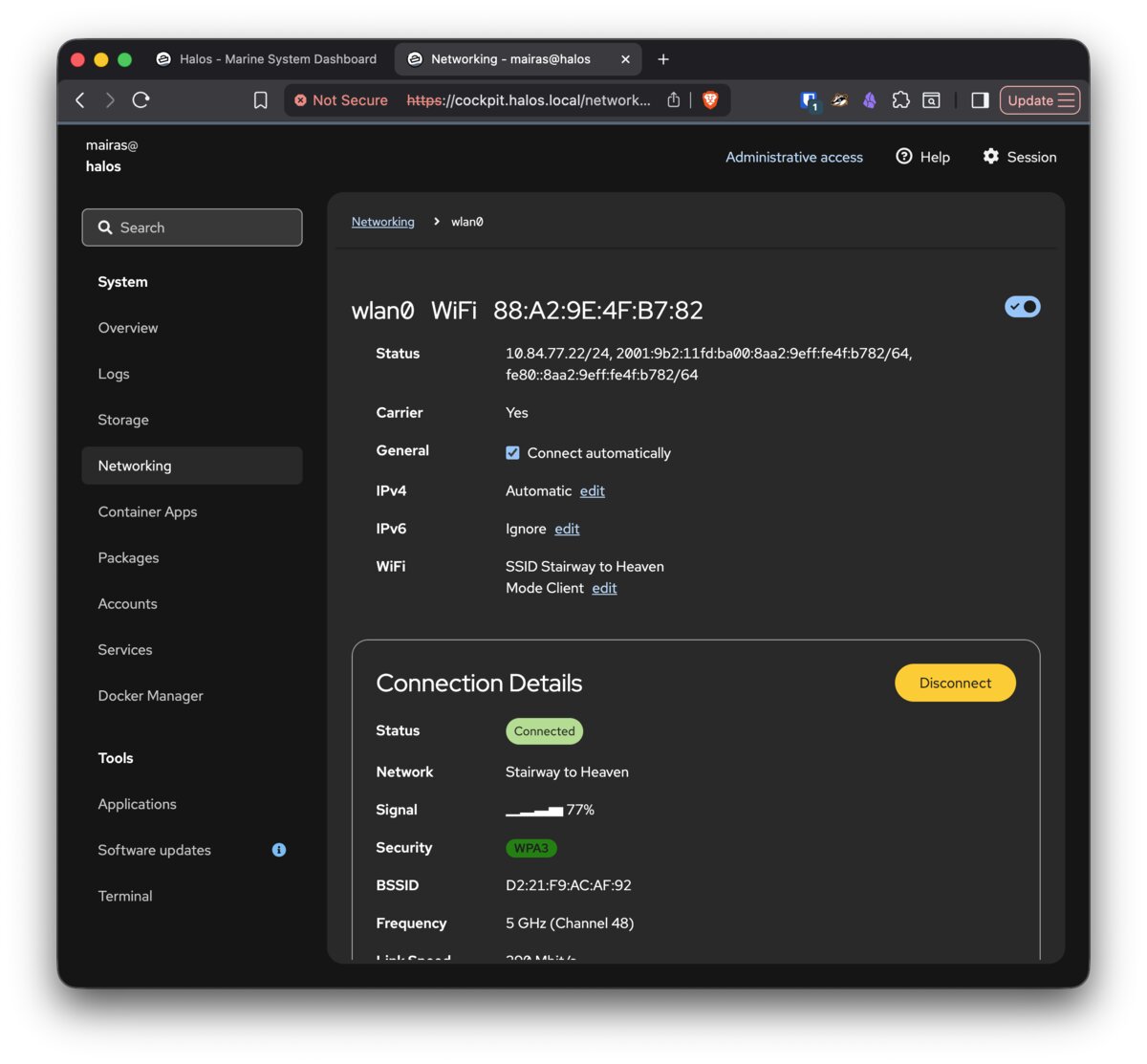
On any image, you can configure WiFi through the Cockpit NetworkManager module:
- Open Cockpit → Networking.
- Click on the WiFi interface.
- Select a network from the list of available networks.
- Enter the password and connect.
Access point mode
All headless images and the Halos-Desktop-Marine-HALPI2-AP desktop variant create a WiFi access point on first boot:
- Network name:
Halos-XXXX(XXXX is unique to your device) - Password:
halos1234
This allows you to connect and configure the device without Ethernet. Once connected to the AP, access the web interface at https://halos.local/ and configure a regular WiFi connection through Cockpit → Networking.
After configuring a WiFi client connection, the access point is no longer needed for initial setup. Consult NetworkManager documentation for running AP and client mode simultaneously.
Ethernet
Ethernet works out of the box with DHCP. The device obtains an IP address automatically from your network's DHCP server.
To configure a static IP:
- Open Cockpit → Networking.
- Click on the Ethernet interface.
- Switch from "Automatic (DHCP)" to "Manual".
- Enter the desired IP address, netmask, gateway, and DNS servers.
Hostname and mDNS
HaLOS uses mDNS (multicast DNS) for local hostname resolution. The default hostname is halos, making the device reachable at halos.local.
Apps are accessed via path redirects on the base hostname (e.g., halos.local/grafana/), which redirect to dedicated HTTPS ports. Previously, per-app subdomains were advertised via mDNS (e.g., grafana.halos.local), but this was removed because Windows doesn't support multi-label .local mDNS names.
Changing the hostname
If you change the device hostname (via Cockpit → Overview or hostnamectl), all URLs change accordingly. A device named myboat uses:
https://myboat.local/— Dashboardhttps://myboat.local/grafana/— Grafanahttps://myboat.local:9090/— Cockpit direct access
After changing the hostname:
- The old
.localname stops resolving. Update your bookmarks. - TLS certificates are regenerated on next service restart to cover the new hostname.
Troubleshooting network issues
mDNS not resolving: Some networks or client devices have issues with .local resolution. Try accessing by IP address instead. Check your router's DHCP client list for the device's IP.
WiFi won't connect: Verify credentials through Cockpit NetworkManager. Check Cockpit → Logs for NetworkManager entries. As a fallback, use Ethernet and configure WiFi from the wired connection.